Disclosure: this guide is published by the team behind Proxium, so we have a commercial interest in one of the options it covers.
What a loyalty-card wallet does — and what it cannot do
A loyalty-card wallet keeps the cards that earn points, stamps or member prices. It stores the card number and the barcode or QR code, so the checkout can read it from your phone screen. Some apps also show balances and points, but the points themselves always live with the retailer's own system.
What it cannot do is hold or move your money. A loyalty card is not a payment card, and the two should not be mixed. Never upload a payment card number, a CVV, a PIN or a photo of a bank card into an app that only needs a loyalty barcode. Be careful with identity documents and receipts that carry card details, too. A loyalty number is not a password, but it is still linked to your shopping history, so treat it with the care you give any account you sign into.
Digital cards are not accepted everywhere either. A fixed laser scanner can struggle with a phone screen, batteries run out, and a few merchants still reject phone copies. Keep the physical cards for the shops you visit most, or at least know which ones will not scan from a screen.
Dedicated app or built-in phone wallet?
There are two families of options, and the difference between them decides most of the comparison.
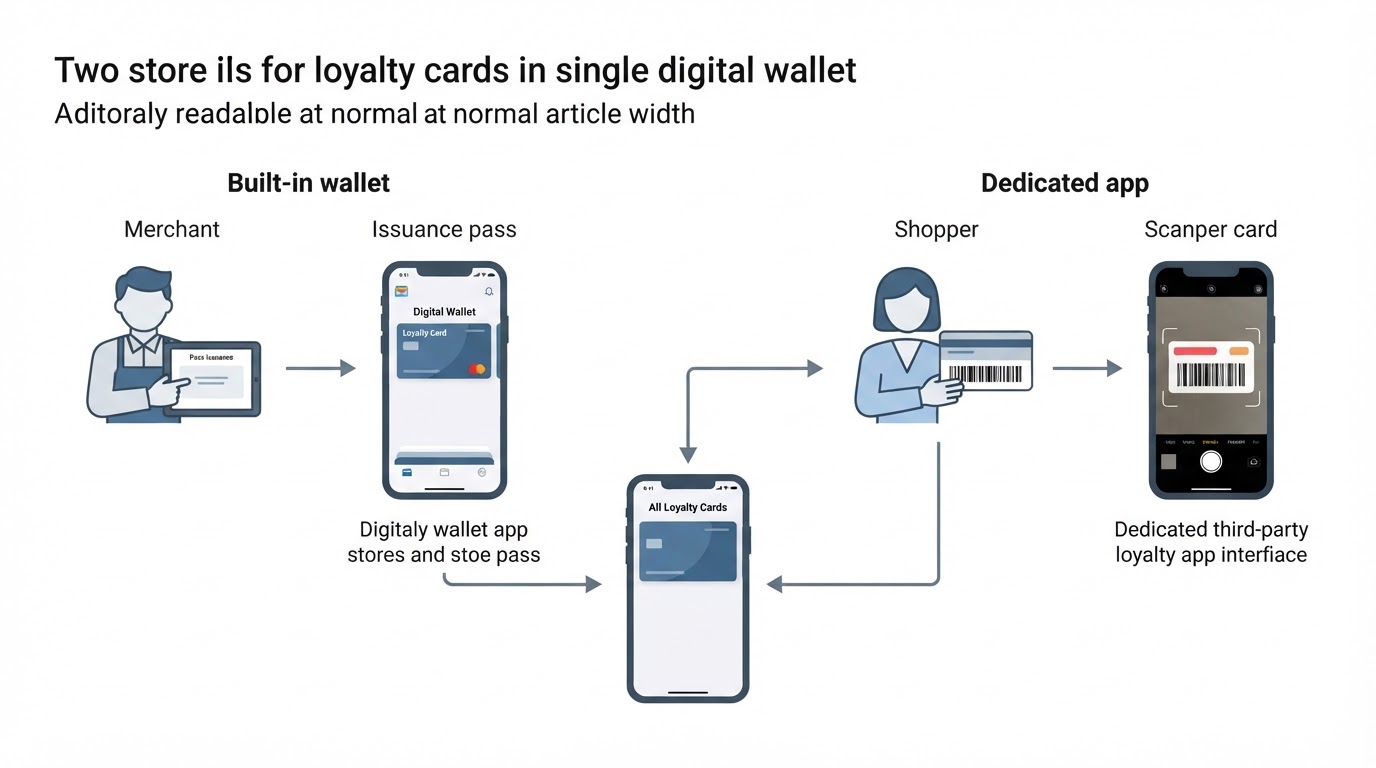
Built-in wallets are already on your phone. Apple Wallet on iPhone keeps passes "such as loyalty and rewards cards, coupons, boarding passes, movie and event tickets" in one place, and you add a pass with an Add to Apple Wallet button, a QR code, AirDrop, or after using Apple Pay with a participating merchant. If the button is not there, the merchant does not support passes yet. Google Wallet on Android works on the same merchant-first model: a business issues a loyalty card through the Google Wallet API, which needs an issuer account, and customers save it from a link on a website, in an email or in a message.
The appeal of a built-in wallet is that it costs nothing extra, needs no new account, and sits beside your tickets and payment cards. The catch is that you can only add a card when the merchant has gone digital. The loyalty card from a small local shop usually will not have that option.
A dedicated loyalty-card wallet app works the other way around. You scan the barcode yourself, or type the number in by hand, so it can hold cards from merchants that have never issued a pass. That independence is the reason the phrase best free app to keep all my loyalty cards in one wallet exists as a search at all: if you carry fifteen cards from fifteen places, waiting for every retailer to support Apple Wallet or Google Wallet is not a plan.
The trade-offs are real. A dedicated app adds another account, another set of permissions, another place your data can be breached or sold, and another product that can be acquired or shut down. Before you move every card in, check that you can get your data back out again.
How to build a shortlist you can trust
Start with official sources rather than roundup posts. Open the app store listing and the product's own documentation, then check six things before you download anything. Which platforms and regions does it support, and what is the minimum operating system version? What is included in the free tier, and what sits behind a paid plan? Does the listing still receive updates? What do the privacy labels say about data linked to you? Does the app scan a barcode with the camera, accept manual entry, or both?
Do this first, because the point of a shortlist is to compare options that fit the cards you actually carry. A long list of apps you cannot use is not progress.
Compare barcode formats and manual entry
Most loyalty cards use one of two families of code. One-dimensional barcodes — the familiar striped kind, including Code 128 and the EAN or UPC numbers on retail cards — are still common. Two-dimensional codes such as QR, PDF417 and Aztec are increasingly used when a card needs to carry more data.
For you as a shopper, the format matters most when something goes wrong. A worn or damaged card may not scan at all, so an app that also accepts manual entry earns its place. Cards with a long member number, or with a member ID printed beside the barcode, can be handled differently across apps, so test your own cards instead of trusting a compatibility list.
Check checkout speed, offline access and screen brightness
At the till, the winning app is the one that shows the right card fastest. Test three things.
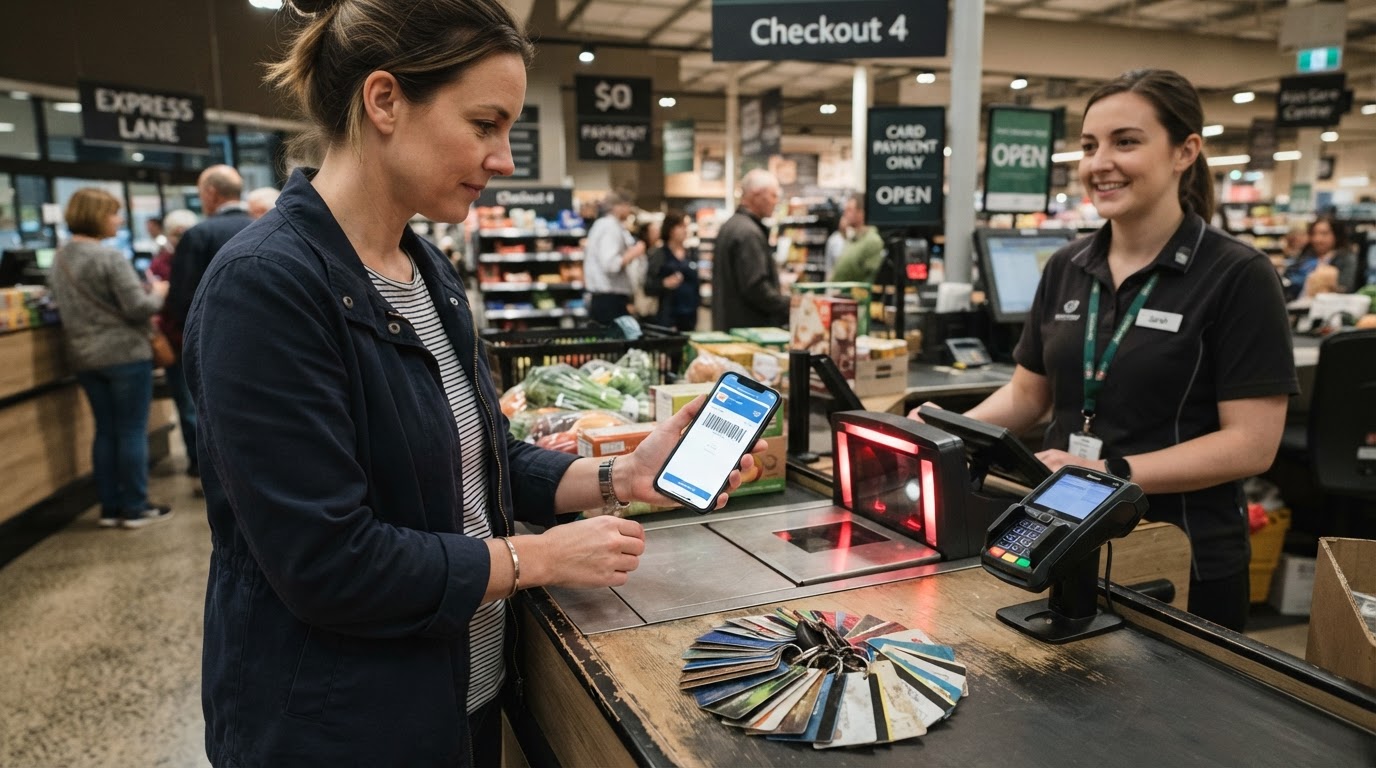
Reachability. How many taps does it take to show a barcode from a locked phone? If the answer is more than two or three, it will slow you down at the till.
Offline behaviour. Put the phone in airplane mode and open the app. A card that appears only with a connection is a card you do not really have in a basement shop with no signal.
Screen brightness. A dark screen makes a barcode harder for a scanner to read. Look for an app that raises brightness automatically or gives you a quick control, and turn off any dark-mode filter before you present the code.
Apple Wallet goes further in participating stores. With Automatic Selection turned on, the loyalty card can appear near the reader, and some stores let you present loyalty and payment in one step. That convenience is real when the merchant supports it.
Evaluate backup, export and phone migration
This is the part most people ignore until they need it. Ask three questions before you migrate every card. Does the app require an account, and does signing in on a new phone restore your cards? Is there an export or backup feature, and does it cover loyalty cards — or only other data? What happens to your cards if the app is discontinued, acquired or pulled from the store?
Proxium, for example, lists data export among its Pro features, and the official site describes exporting lists, tasks and bills as text or CSV. That is a useful safety net for household data, but check what it covers for loyalty cards before you rely on it as a full backup.
Review household sharing without assuming it works
Households often share cards: one person holds the supermarket card, another carries the chemist's. A shared wallet only helps if it truly syncs between people and devices, so read the documentation for what sharing covers. Proxium's advertised family sharing covers shopping lists, tasks and the family calendar, while cloud sync keeps your own data up to date across the devices you sign into. Do not assume every app shares every card type until its own documentation says so.
Verify cost, ads, platforms and regional availability
Free means different things in different apps. Check whether the free tier is permanent, whether it shows ads, whether it limits how many cards you can store, and whether the features you need sit behind a paid upgrade. A one-time purchase is not the same as a subscription, and neither is automatically better; the right answer depends on how long you expect to use the app.
Platforms matter too. Apple Wallet is the built-in option on iPhone, and Google Wallet comes with Android phones. A dedicated app may support both, or only one. Regional availability varies as well: some wallets and some card issuers work only in certain countries, so confirm that yours is covered before you spend an evening moving cards across.
Check privacy permissions and account deletion
Before you grant access, read what the app asks for and why. A loyalty-card wallet needs the camera if you scan barcodes. It does not need your contacts, your precise location history or your bank credentials. Check the store's privacy labels and look for a documented way to delete your account and data. Proxium's App Store listing, for instance, declares data linked to you such as purchases, contact information and identifiers, plus diagnostics not linked to you. If an app cannot tell you how to leave, that is a reason not to join.
Where the three main options stand
Option | Built into | Store any card by scanning? | Cost |
|---|---|---|---|
Apple Wallet | iPhone | No — needs a merchant-issued pass | Free with the device |
Google Wallet | Android | No — needs a merchant-issued pass | Free with the device |
Proxium | iOS and Android | Yes — store and scan your cards | Free download, one-time Pro upgrade |
Apple Wallet holds merchant-issued passes — including loyalty and rewards cards — in the same app as tickets and payment cards, and it can show a barcode or QR code at the till, with Automatic Selection for participating stores. You can read the full walk-through in Apple's guide to passes in Wallet.
Google Wallet follows the same merchant-first model: a business must issue the loyalty card as a pass through the Google Wallet API before it can appear in the app, with saves from websites, email or messages. The Google Wallet loyalty card documentation explains the issuer side of that process.
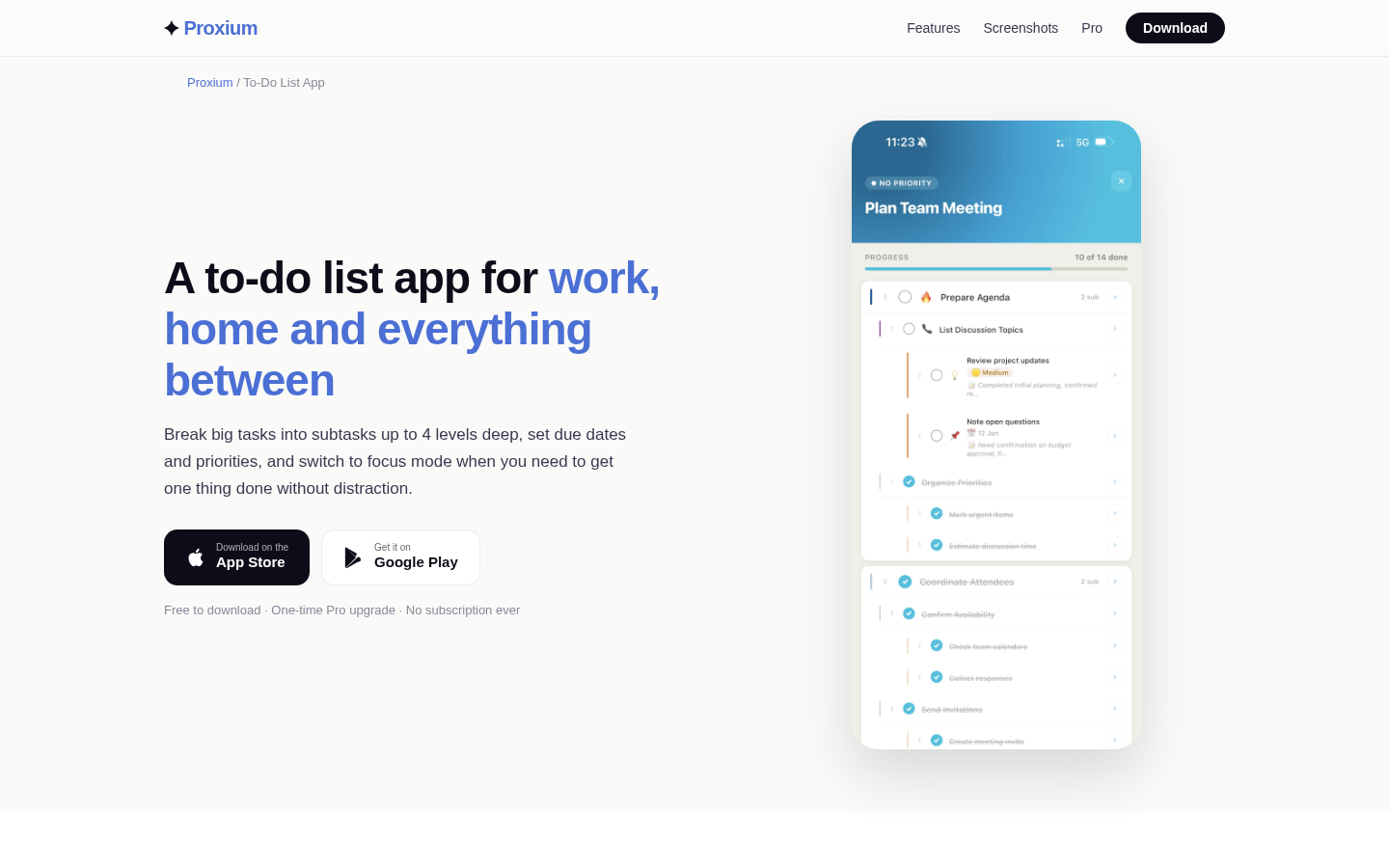
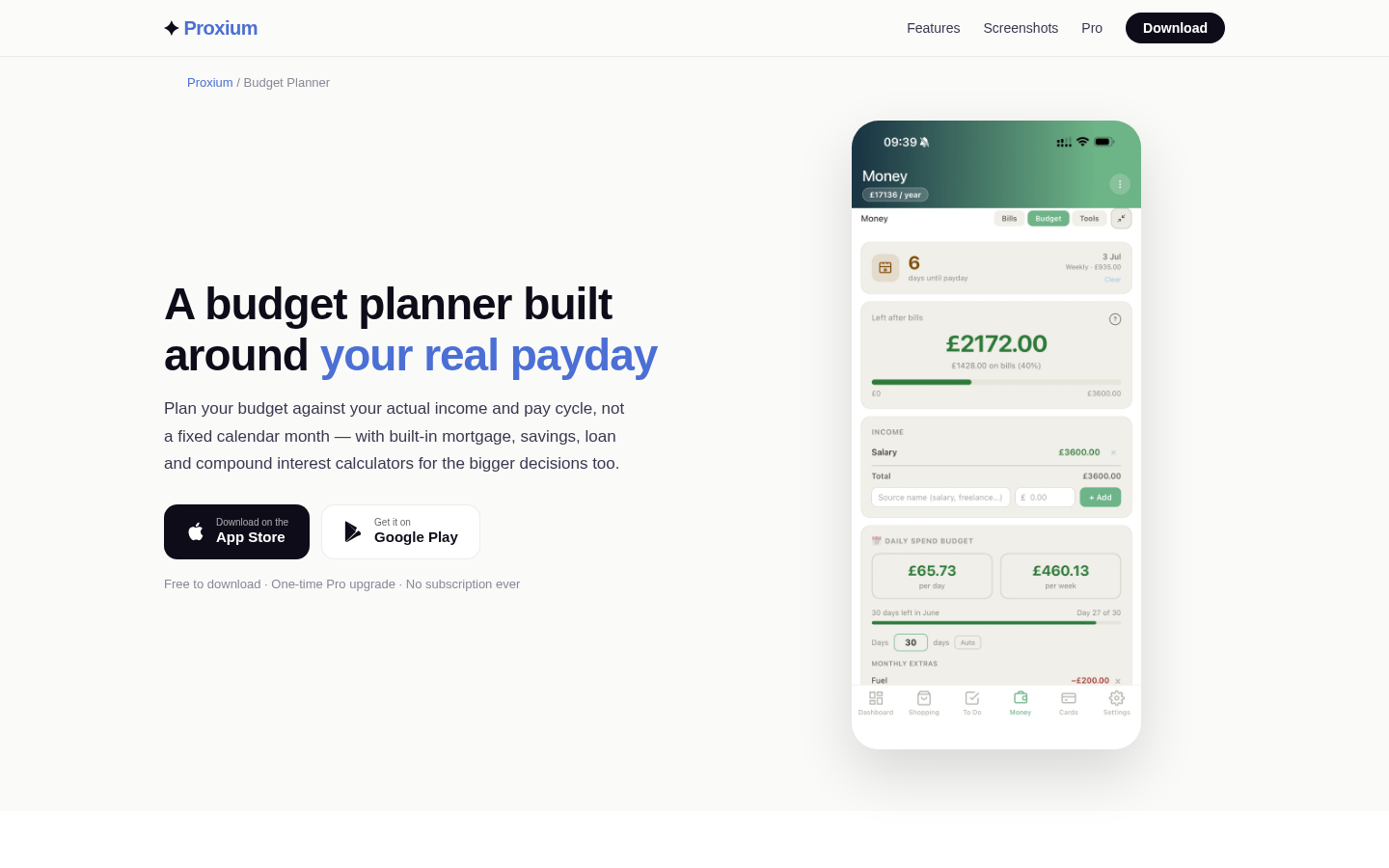
Proxium includes a loyalty card wallet that stores your cards digitally and scans their barcodes at checkout, and the same app covers shopping lists, tasks, bills and a family calendar. It is free to download, with a one-time Pro upgrade that unlocks unlimited loyalty cards along with cloud sync, family sharing and data export. The official site lists Pro at £9.99 and the US App Store listing shows $9.99, with a three-day trial that does not ask for a card. If none of these fits, the framework above still works for any dedicated loyalty-card wallet: check the same criteria and test the same way.
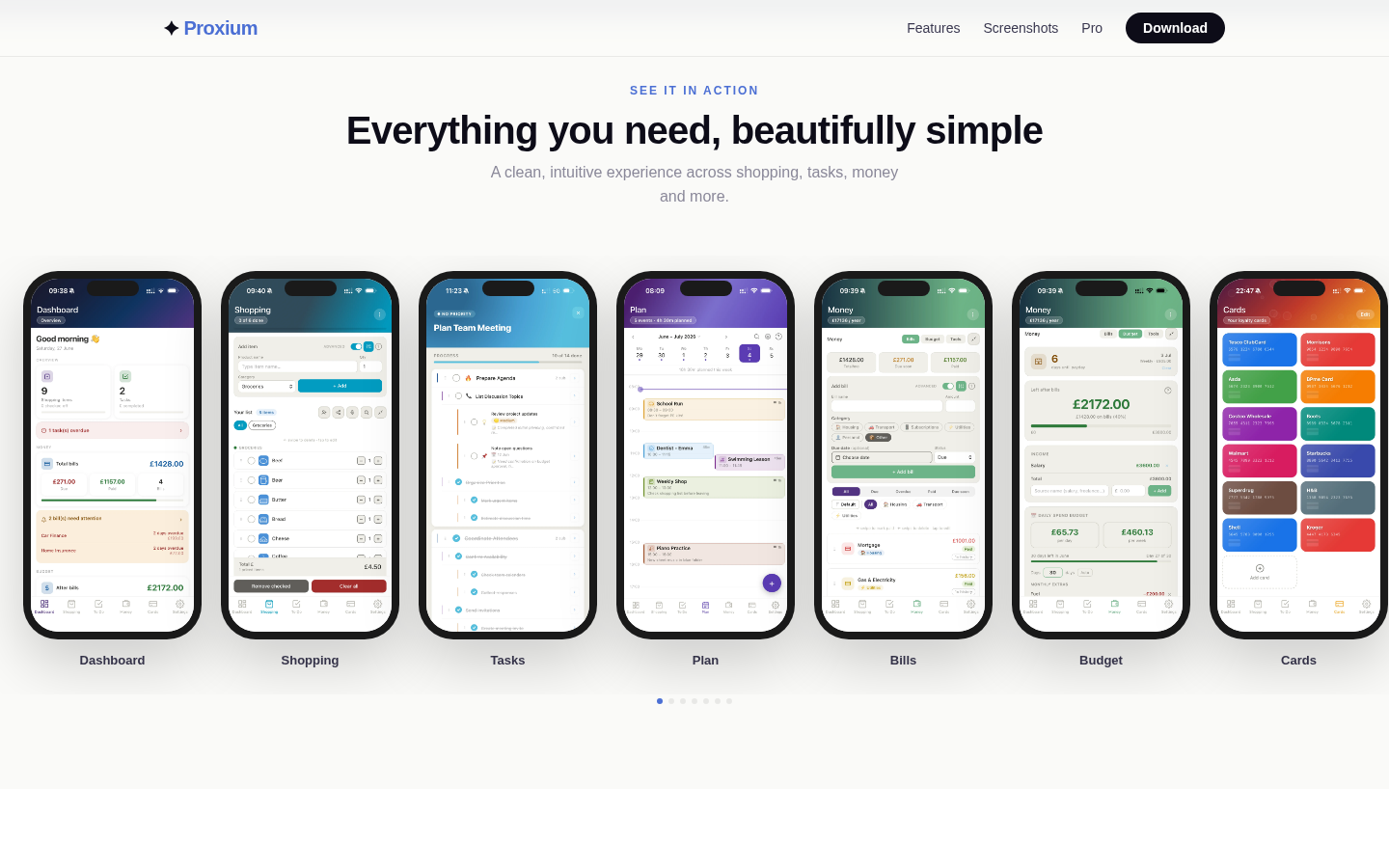
'See it in action' / 'Everything you need, beautifully simple' section showing 7 phone mockups: Dashboard, Shopping, Tasks, Plan, Bills, Budget, Cards. Each mockup shows in-app UI
Test one or two cards before moving everything
Migration is reversible only while you still have the physical cards, so start small. Pick one non-sensitive card — a coffee shop or a supermarket, not a card tied to your identity documents or a credit account. Add it to your shortlisted app and use it for a full week, including one weekend visit. Present the phone at a normal checkout, then repeat once when the shop is busy. Try it in airplane mode, and once with the screen brightness at its lowest. Check that you can see, edit and remove the card, and that signing out does not lose it. Only then move the rest, in batches, keeping the plastic somewhere you can reach.
The test is complete when one card has worked at two separate visits without opening the retailer's own app or typing a number. If it fails at any step, try the next app on your shortlist. That is far cheaper than fixing a wallet full of cards you cannot use.
Final comparison checklist
Use this list before you commit.
- Card compatibility: can the app hold every card you actually carry, including cards the merchant has not digitised?
- Barcode support: does it scan your cards, accept manual entry, and handle both one- and two-dimensional codes?
- Checkout speed: can you show a barcode in two or three taps?
- Offline access: does the card still appear with no connection?
- Screen brightness: is there a quick control or an automatic boost?
- Backup and export: can you get the data out, and on to a new phone?
- Migration: what happens if the app is discontinued?
- Sharing: does it sync with the people in your household, and only the data you want to share?
- Cost and ads: what is free, what is paid, and is it one-time or recurring?
- Platform and region: does it run on your phone and work where you shop?
- Privacy: are the permissions justified, and can you delete your account?
- Test result: has one real card passed two real checkouts?
If a candidate fails on compatibility, offline access or export, drop it. Those three are the hardest to repair later.
The bottom line
There is no single best free app to keep all my loyalty cards in one wallet, because the right answer depends on your cards, your phone and your household. If every shop you use issues a digital pass, a built-in wallet is the simplest free option. If your cards come from places that have never gone digital, a dedicated app that scans barcodes is the only way to keep them in one place — as long as it can also give your data back.
If you want a free household app that keeps loyalty cards beside your shopping lists, tasks and bills, Proxium is available on the App Store and Google Play, with a one-time Pro upgrade and no subscription.