Is a shared family calendar app worth it over just using Google Calendar?
If you have asked yourself “is a shared family calendar app worth it over just using Google Calendar,” you probably already share events with your partner or your kids — and you are wondering whether a dedicated app would genuinely make family life easier, or just add one more thing to keep updated. The honest answer is that it depends on how your household coordinates, not on which app is more popular.
This guide treats the question needs-based rather than as a roundup of “best” apps. It compares what a plain shared Google Calendar genuinely covers with what dedicated family calendar apps exist to add, using the criteria that actually decide the question: participants and household size, permissions, recurring schedules, mixed-device access, notification preferences, lists or tasks, onboarding effort, and data access. Every Google Calendar capability described here is verified against Google’s official documentation, and nothing below declares one option universally better — because for some households, staying on Google Calendar is the right answer.
The short answer: when a shared Google calendar may be enough
A shared Google calendar is usually enough when the household’s coordination is mostly events: appointments, school pickups, club sessions, weekend plans, and visits. If everyone already lives in Google Calendar, the marginal cost of sharing is close to zero.
Google Calendar lets you share any calendar you own with specific people at one of several permission levels, from “See only free/busy (hide details)” up to “Make changes and manage sharing.”
Sharing happens by email address, recipients click the link in the invite to add your calendar, and you can stop sharing whenever you want. There is also a purpose-built family route: when you create a family on Google, a calendar called “Family” is created automatically, every family member with access can make changes to events and manage how the calendar is shared, and the calendar shows up on any device where each person is signed in — so a household mixing iPhones, Android phones, and laptops still sees one calendar.
If the coordination load fits on a calendar — times, places, people — a shared Google Calendar is free, already on the devices everyone owns, and usually the pragmatic answer.
What changes when household coordination gets more complex
Households rarely stop at events. Once there are multiple children with weekly cadences, shared care arrangements, or two adults juggling shifting schedules, the calendar stops being a schedule and becomes the operating system for the week. The questions shift from “what’s on?” to “who is taking them?”, “did anyone update the pickup time?”, and “whose turn is it?” — and events alone stop capturing reality.
Two things change at this point. First, more editors means change attribution and permissions become real decisions rather than footnotes: with several people adding and editing, you want to know who changed what, and you want some events (school meetings, health appointments) visible only to the adults who need them. Second, coordination starts leaking into chats and paper — chores, shopping, “don’t forget” reminders — because a calendar shows moments, not responsibilities.
Google’s own family tools acknowledge the first concern: when someone with “Make changes and manage sharing” permission is set up, Google sends an email notification if a family member under the age of 13 shares the family calendar, makes it public, or changes member permissions. That kind of guardrail matters when children are part of the shared calendar — and it is worth asking how any dedicated app you evaluate handles the same situation.
Decision criteria: participants, permissions, recurring events and visibility
These are the criteria that separate an “app you open” from a “system the household actually runs on.” Test every option — including the Google setup you may already have — against all of them.
Participants and permissions. Google Calendar lets you share any calendar you own with specific people at one of several permission levels, from “See only free/busy (hide details)” up to “Make changes and manage sharing.” The practical middle ground for two adults is usually “Make changes and see event details”; “See only free/busy (hide details)” suits relatives or helpers who only need to know when you are unavailable. Google also supports per-event visibility: an event can be set to Default, Public, or Private, and a Private event appears to most viewers only as a “Busy” block.
Recurring schedules. Google Calendar handles the standing rhythm of family life well: events can repeat on chosen days with an end date, and you can edit one occurrence, this and following events, or the whole series. Two limits are worth knowing: a repeating event is capped at 730 occurrences, and a recurring series carries a single visibility setting — you cannot make one instance private and the rest public.
Mixed-device access. Because shared and family calendars appear on any device where each member is signed in, households with different phones and laptops genuinely see the same calendar. The trade-off is that “someone’s Google account” is the anchor: the calendar lives in the owner’s account, access stops when sharing stops, and leaving a Google family group means losing access to the family calendar.
Tasks inside the calendar. Google Calendar includes tasks alongside events, with their own visibility settings. The important caveat for families: a task with a start and end time can be shared, but a task without a start or end time is always private and never visible to others — so a shared chore list cannot be built from untimed tasks alone.
When lists, chores or broader household planning matter
This is the point where the dedicated family calendar app category earns a serious look. A calendar answers “when and where”; households also coordinate “who does what” — the dishwasher rotation, the shopping list, the packing list before a trip, homework reminders. On a shared Google Calendar you can model some of this with timed tasks, but it requires deliberate setup and the untimed-task privacy limit above means lightweight “don’t forget” items never appear on anyone else’s calendar.
Dedicated family calendar apps are designed around this second layer: shared calendars plus shared lists, chores, and per-member profiles in one household group. Whether any specific app delivers that well is a per-app question — evaluate the candidate on the same criteria above rather than assuming the category is homogeneous.
Publisher disclosure: this guide is published by the team behind Proxium, a household-organization app that includes a family calendar.
Proxium is one example: its product pages describe a family calendar with color-coded events, recurring events, reminders, and colored badges that show which household member added each event.
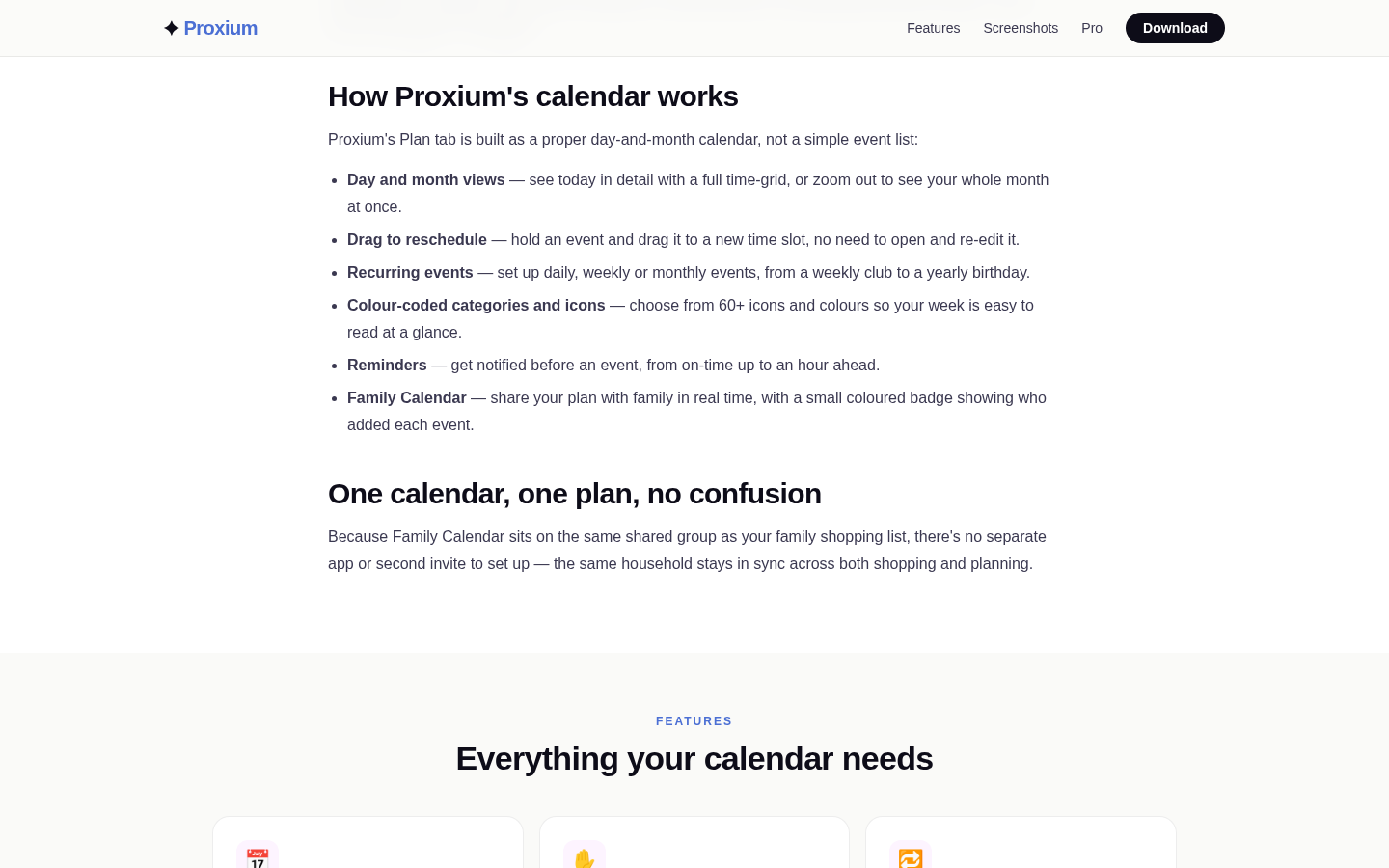
Below-fold section on the calendar feature page showing 'How Proxium's calendar works' with 6 bullet points: Day and month views, Drag to reschedule, Recurring events, Colour-coded
If bundling the calendar with lists and tasks in one shared household space is exactly the shape you are after, that is a reasonable reason to explore the category seriously — including apps that pair a family calendar with shopping lists and to-dos, not just calendars.
Setup effort, notification load and household adoption
Setup cost is where many good intentions die, so be honest about it.
Google Calendar setup. Creating or choosing a calendar and sharing it is quick, but onboarding is not zero: each person must open the invite email and click the link before the calendar appears, and you choose each person’s permission level at that point. The family-group route skips individual links but requires everyone to join the family group.
Notification load. By default, the family calendar gives you the same upcoming-event notifications as your primary calendar — and it does not notify you when a family member creates, edits, or deletes an event. That is a feature and a risk at once: low noise, but the system depends on people checking the calendar rather than being pushed updates. Notification settings are configured per calendar, so each person can tune how far ahead they want reminders.
Household adoption. The real cost of a dedicated app is that every member must install and open one more app. Adoption — not features — is what makes or breaks shared family planning. When you evaluate a dedicated app, ask how it handles reluctant participants: whether reminders go to the right people, whether a partner can participate from a free account or a platform they already use, and how much daily checking the design demands.
A side-by-side decision matrix based on household scenarios
Household scenario | A shared Google Calendar likely covers | Why a dedicated family calendar app could earn its place | Realistic call |
|---|---|---|---|
Two busy adults, mostly events | Shared events, permission levels, private details when needed | Little beyond what you have | Stay with Google Calendar |
Adults plus school-age children | Family calendar, recurring clubs and pickups, under-13 guardrails | Attribution of who added what, chore and list layer, friendlier family flows | Worth a one-week test |
Blended, multi-generation or high-turnover household | Events only; access tied to family group membership | Per-member visibility rules, household groups that survive membership changes | Evaluate dedicated apps deliberately |
Recurring-heavy routine (weekly clubs, alternate weekends) | Strong recurring events with series editing | Recurring schedules designed for custody-style patterns and reminders | Compare series handling in the test |
Household that also runs lists, chores and reminders | Timed tasks with manual visibility setup; untimed tasks never shared | Calendar plus shared lists and chores in one group | Dedicated category is the point |
A partner or kids who resist new apps | Everyone likely already has Google | One more app to install and maintain | Adoption decides — test it |
The matrix is deliberately neutral: there is no universal winner, because household size, recurring load, and willingness to adopt a new app are what determine the answer. If you are in the right-hand column for most rows, a dedicated family calendar app is worth testing; if you are in the left column, your shared Google calendar is doing its job.
How to run a one-week test before switching
The test has a simple shape: run one real week on your shared Google Calendar first, then mirror the same week in one dedicated family calendar app candidate and compare what each setup actually captured.
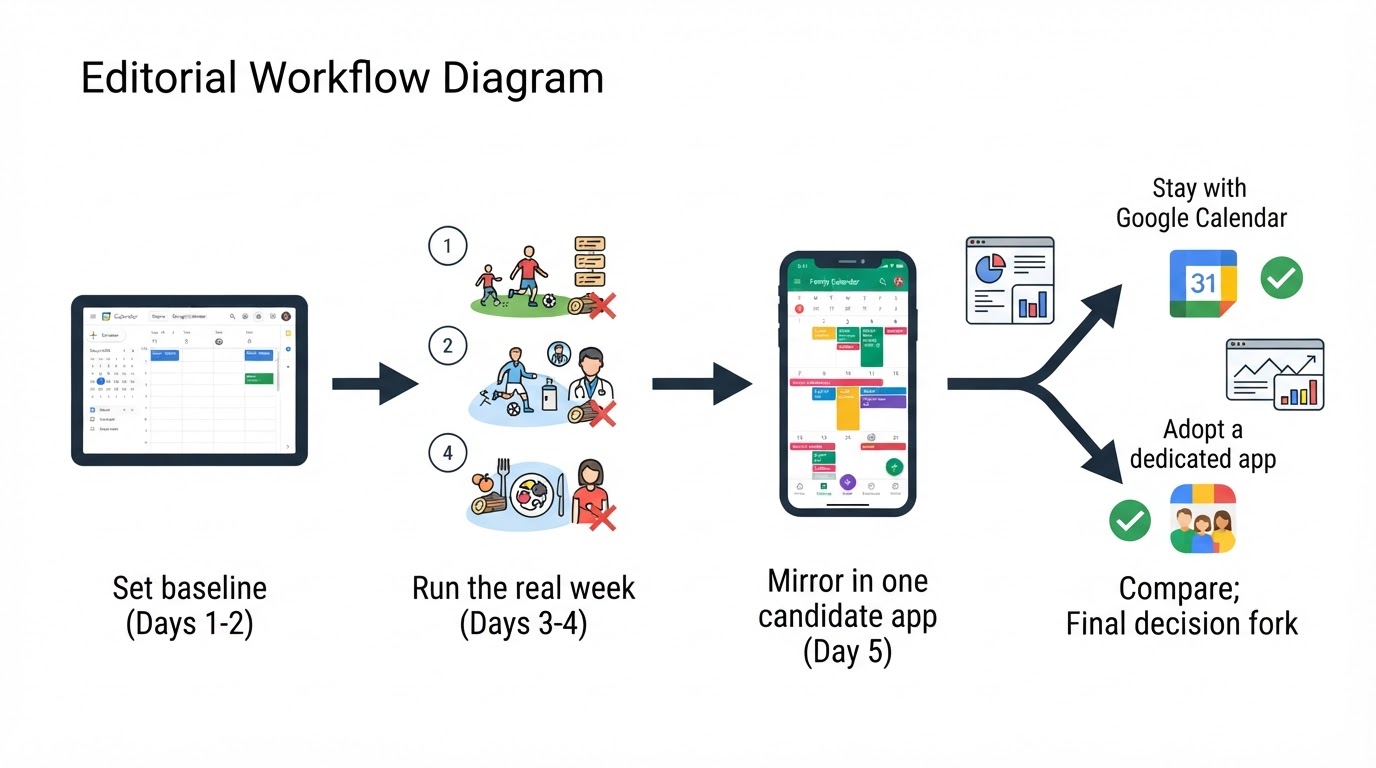
Days 1–2 — Set the baseline. Create or select the calendar your household will actually use (a shared calendar or a family calendar), share it with the adults at “Make changes and see event details,” and add every recurring event for the coming week: clubs, pickups, standing calls. Each person tunes their own notification preferences.
Days 3–4 — Run the real week on Google Calendar. Add everything that comes up, including one-off changes. Keep a small log: which events were missed or double-booked, who opened the calendar each day, and which coordination items ended up in a chat or on paper instead of on the calendar.
Day 5 — Mirror the week in one dedicated candidate. Pick a single dedicated family calendar app — not three — add the household members, and recreate the same events plus the chores or lists that leaked during days 3–4.
Days 6–7 — Compare honestly. Score both setups on the criteria from this guide: coverage (what was missed), adoption (who actually opened which tool), notification load (useful pings versus noise), the non-event layer (were chores and lists actually handled), and setup cost.
Completion standard. If the shared Google Calendar captured every event, everyone checked it, and nothing important leaked into chats, staying is the correct outcome. If the week leaked coordination that a calendar cannot hold — or if half the household never opened the tool — you now know, with evidence, which problem a dedicated app would need to solve.
Next steps: decide by scenario, then choose deliberately
If your test week says the shared Google Calendar covered the load, you have your answer: keep using it, and revisit the decision only if the household structure changes. If the test exposed real gaps — attribution, recurring complexity, or a list-and-chore layer your household runs on — then a dedicated family calendar app is worth adopting for that specific gap, chosen on the criteria above rather than by reputation.
If that bundled shape is what your household is after, it may be worth exploring Proxium’s family calendar on your own terms — and if your test week shows a shared Google Calendar already does the job, staying put is a perfectly good answer. There is no wrong choice when the choice is based on how your household actually coordinates.
Google Calendar capabilities in this guide are verified against Google’s official documentation: Share your calendar, Use a family calendar on Google, Change event & task visibility, and Create a recurring event.